-
 Yuru Zuo
- 15 Apr, 2023
Deploy Azure Resources via Terraform and Azure Pipeline
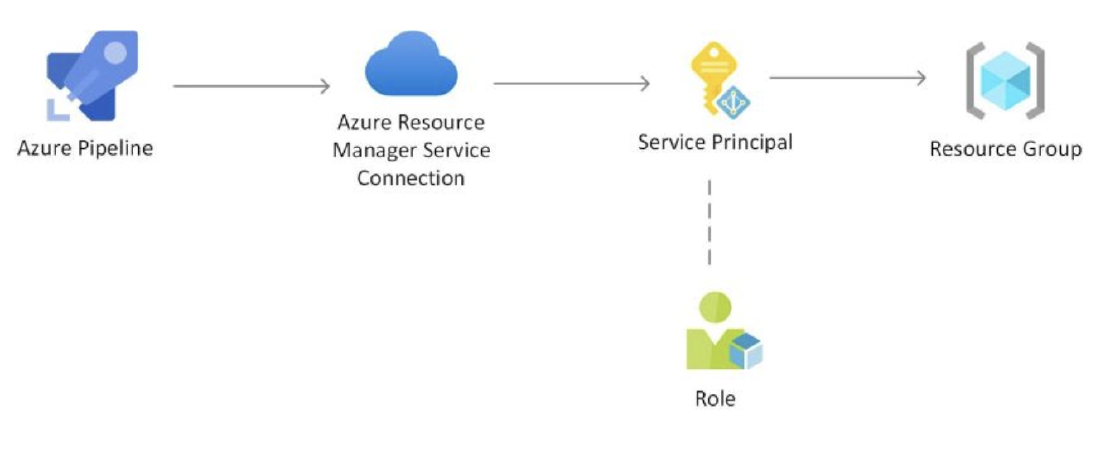
Deploy Azure Resources via Terraform and Azure Pipeline Azure DevOps and Azure Pipeline are powerful tools for automating the deployment of …
Yuru Zuo
Creating app registrations for API and client apps in Azure Active Directory (Azure AD) is the first step in enabling authentication and authorization for your apps. This blog post will guide you through the process of creating app registrations for both your API app and client app using Azure Portal.

tenant_id, and client_secret from the client app.client_id from the API app.Scope from the API app.Once you got that token, you can validate the token from jwt.ms.
Final code can be found here

Written By
Hi I’m a software engineer living in London. I’m currently working at [Microsoft]. I’m interested in functional programming, distributed systems.
Yuru Zuo
Deploy Azure Resources via Terraform and Azure Pipeline Azure DevOps and Azure Pipeline are powerful tools for automating the deployment of …
 Yuru Zuo
Build and push docker images to Azure Container Registry using Azure DevOps pipelines In this blog, I’ll show you how to create azure container …